
Blog
How to Create a Box Dieline from Your Dimensions
Turn internal box dimensions into a cut-and-crease dieline: pick the FEFCO or ECMA structure, enter measurements, check the fold, export SVG, PDF or DXF.
Published
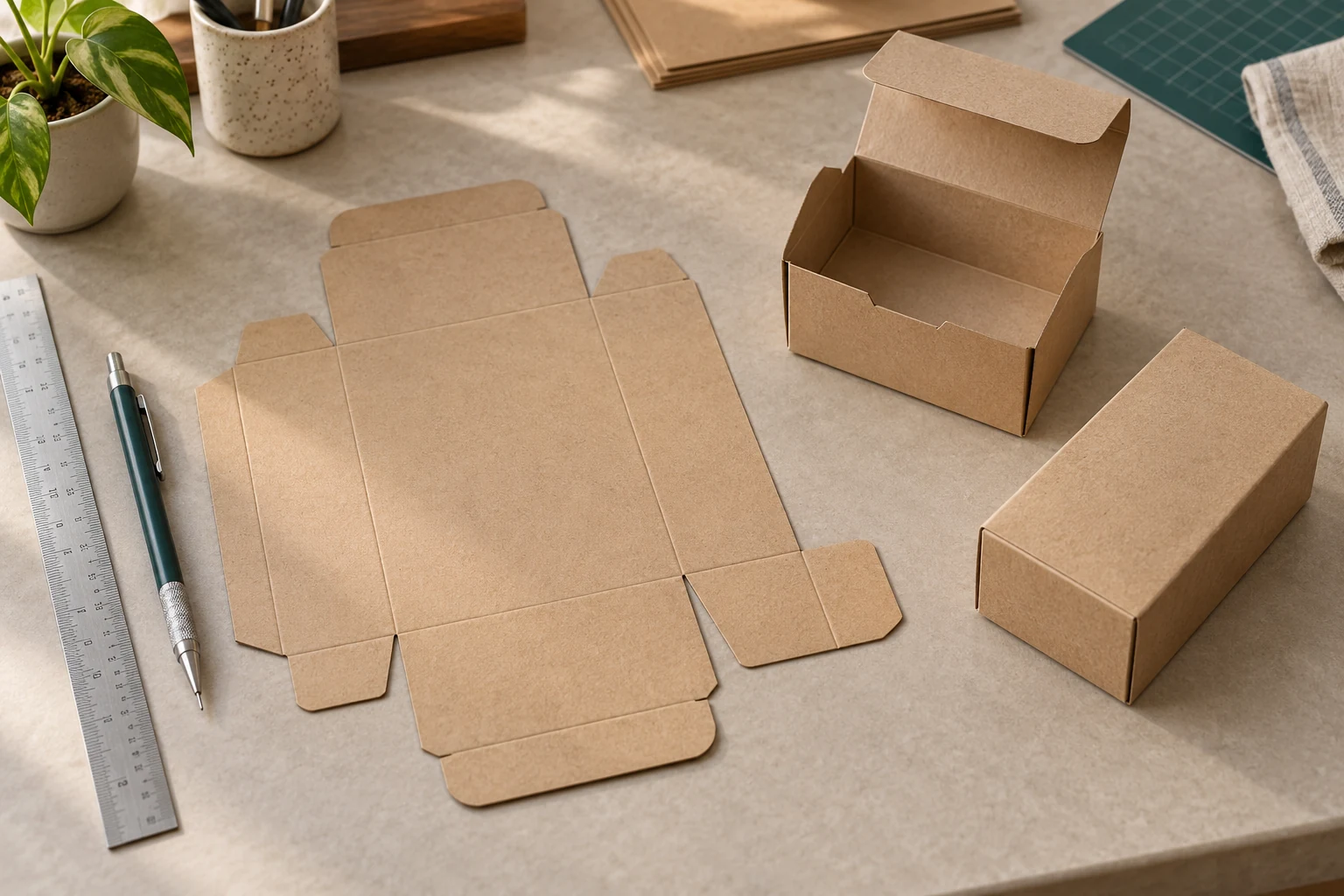
A box dieline is the flat drawing a converter cuts and creases from: the outline of the blank, every fold line, the glue flap and the slots. You do not have to draw it from scratch. For the standard constructions in the FEFCO and ECMA catalogues, the geometry follows from the structure's code and three or four measurements. Here is how that goes in Packdroid, from a tape measure to a file your manufacturer can open, including which parts cost nothing.
1. Pick the structure before you pick a size
The code comes first. A FEFCO 0201 regular slotted container and a FEFCO 0426 hinged-lid mailer can hold the same product, but their blanks look nothing alike, their flaps close in a different order and their board usage differs. Decide what the box has to do:
- Ship in a courier network with other parcels on top: a slotted shipping carton from the 02 series.
- Open in front of the customer and be kept: a die-cut mailer such as 0426, 0427 or 0441.
- Sit on a retail shelf at carton weight: a folding carton from the ECMA A series, for example a straight tuck end.
- Carry by hand: a gusseted shopping bag.
If you are new to the codes, the FEFCO code guide and the ECMA code guide explain what each digit group means. The whole catalogue is browsable at /templates by family.
2. Measure the product, not the box you have
Every Packdroid template is driven by internal dimensions: the space the product occupies once any insert, tissue or cushioning is included. Measure length, width and depth of the packed product, add the clearance you want on each axis, and write those three numbers down. A detailed walkthrough is in how to measure box dimensions.
Two things are easy to get wrong here:
- Internal versus external. A manufacturer's quotation and a courier's size band usually talk about external dimensions. The dieline needs internal ones. The template adds the board thickness for you, so enter the inside.
- Orientation. Length is the longer horizontal side, width the shorter, depth the vertical dimension when the box stands as it will be used. Swapping length and width on a slotted carton moves the manufacturer's joint and changes which panel the print lands on.
3. Generate the 2D dieline and read it
Open the template, enter the three dimensions and any construction-specific values the style needs, such as a lid depth or a dust-flap size. The template validates each value against the range the structure supports and redraws the blank. What you are looking at is the production geometry: cut lines, crease lines, the glue flap and the slot positions, all derived from the numbers you typed.
Read it before you do anything else. Check that the glue flap sits on the panel you expect, that flap depths look right for the board you plan to use, and that any window or hang hole lands where the artwork needs it. The cut lines versus crease lines guide explains how the two line types are told apart in the file and on the press.
4. Fold it on screen before you cut anything
The 3D preview folds the same parametric model you just drew, so what you see is the dieline itself, folded. That is where mistakes that hide in a flat drawing show up: an inner flap that collides with an outer one, a tuck that does not reach its slot, a lid that is a few millimetres short of closing. You can rotate the folded box, step through the fold, and drop your artwork onto it to see where the print lands once the panels meet.
The 3D fold does not replace a physical sample. Board grade, flute direction and the crush behaviour of a real crease still have to be confirmed with the converter.
5. Export in the format the next person needs
Packdroid exports SVG, PDF and DXF. Which one to send depends on who opens it:
| Who receives the file | Format | Why |
|---|---|---|
| A designer placing artwork | SVG | Editable vector geometry that drops into Illustrator or Figma at exact scale |
| A customer or buyer approving the structure | Opens anywhere, prints at scale, easy to mark up | |
| A die maker or CAD/CAM operator | DXF | The native exchange format for cutting tables and die-making software |
The trade-offs are covered in more detail in SVG vs PDF vs DXF for packaging dielines. Whatever you send, state the units and whether the dimensions are internal, and name the board you assumed.
What is free, exactly
Every new account starts on the Free plan. On Free you can open any template in the catalogue, enter your dimensions and inspect the full 2D dieline on screen. That is enough to decide on a structure, sanity-check a size and talk to a manufacturer with a drawing in front of you.
For the first five days, a Free account can also download four cut files from the templates marked DEMO. Those files carry Packdroid branding. Unbranded downloads of every template, in SVG, PDF and DXF, come with any paid plan, and the 3D fold preview comes with the Workshop and Line plans. The current plan limits and prices are on the pricing page.
Before you send it to the converter
A short checklist, in the order a converter will ask about it:
- Dimensions stated as internal, in millimetres, in length by width by depth order.
- The structure named by its code, for example FEFCO 0201 or ECMA A20.20.01.01, so both sides mean the same construction.
- The board you assumed: material, grade and, for corrugated, the flute profile and direction.
- Cut and crease lines on separate layers or colours, as the die maker expects.
- Artwork, if any, kept clear of cut lines and placed relative to the folded panels, not the flat sheet.
If you work in software of your own, the same dielines are available as a REST call with an API key on any paid plan; see the developer page. Otherwise, open a template, type your three numbers and watch it fold.